Creating & managing units
To get started with creating and managing a unit in Doubtfire, ensure your account is of the correct permission level, and log in to Doubtfire.
-
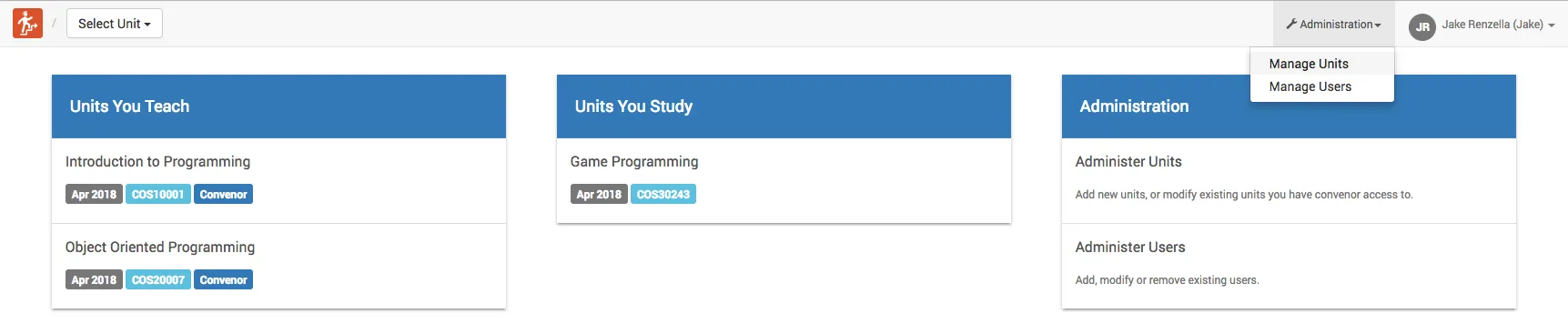
After logging in to Doubtfire, select Administration -> Manage Units from the menu on the top right menu.
-
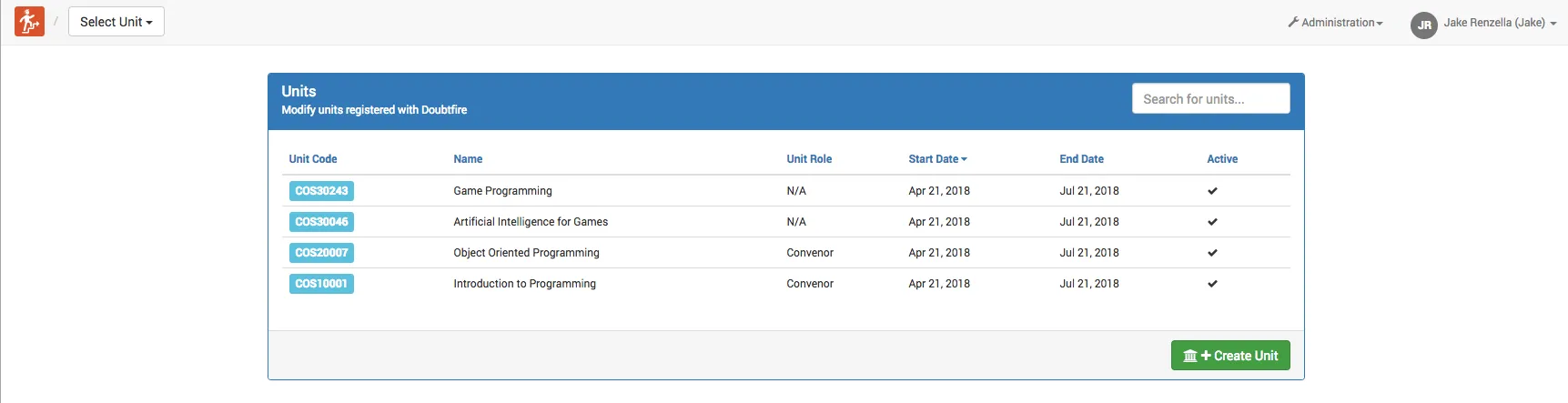
Select create unit
-
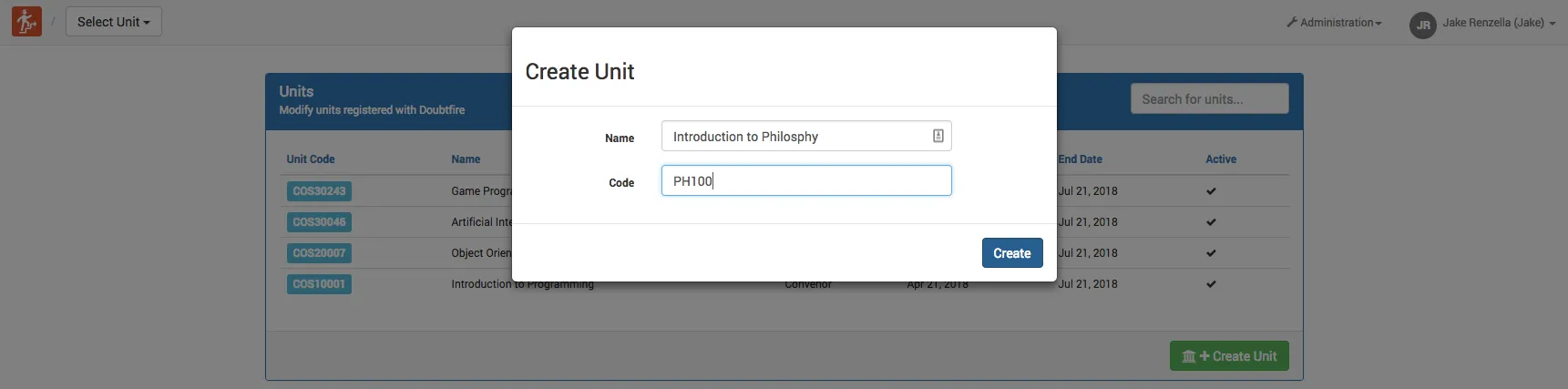
Enter the name and unit code of the unit:
-
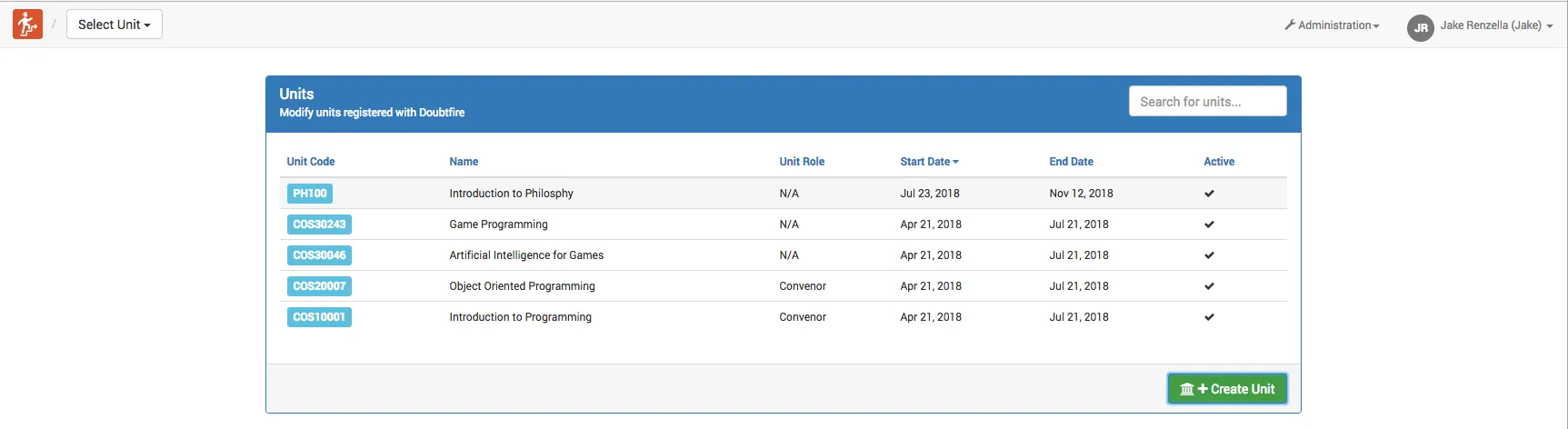
After the unit is created, select the newly created unit from the list of units:
Now that the unit is created, there are a number of settings which must be populate before the unit can be properly used:
General Unit Details
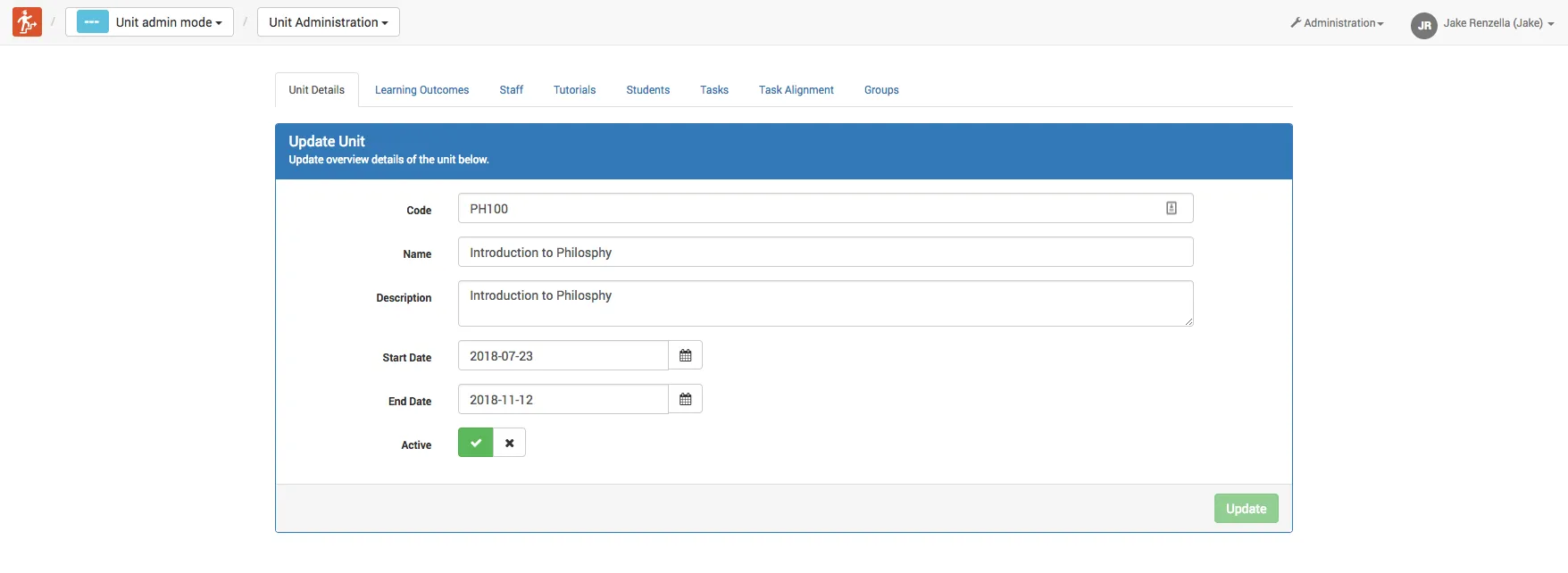
Select the first tab: unit details.
Enter all details:
- Unit Code
- Unit Name
- Unit Description
- Start Date
- End Date
- Active (Whether the unit is open)
Learning Outcomes
Select the second tab: Learning Outcomes
Add or delete learning outcomes for the unit by filling the fields in the Add Outcome modal.
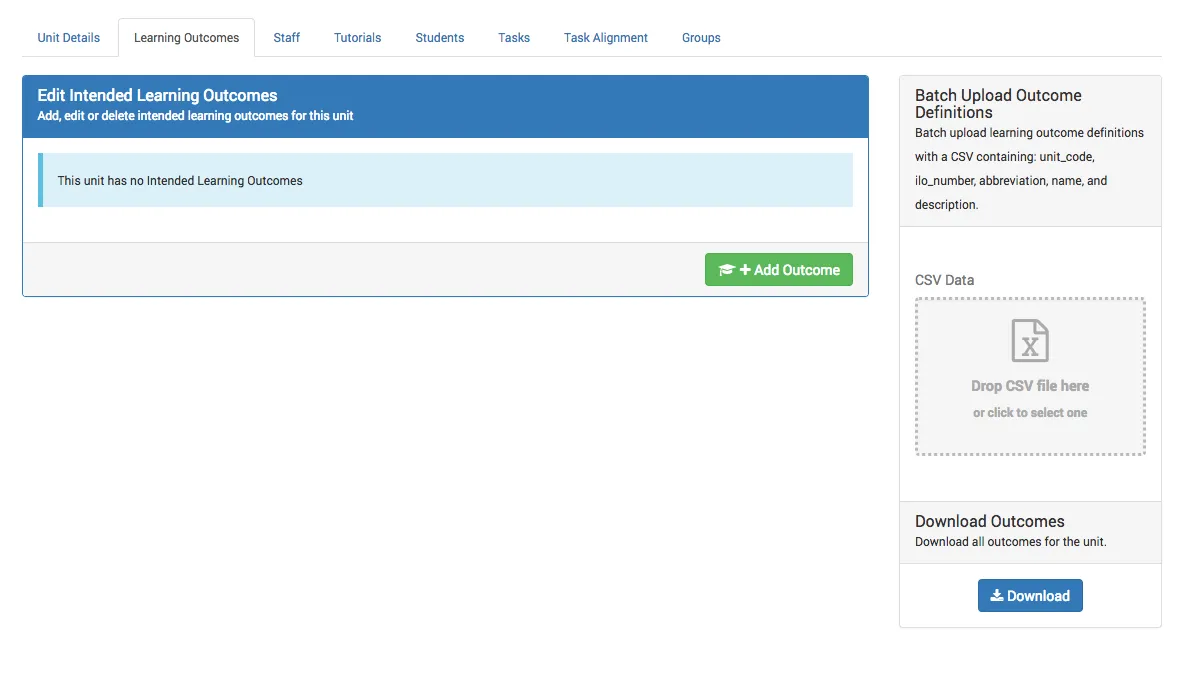
Learning Outcomes can also be batch uploaded or downloaded, by using a CSV file in the right-hand-side upload/download panel.
Staff
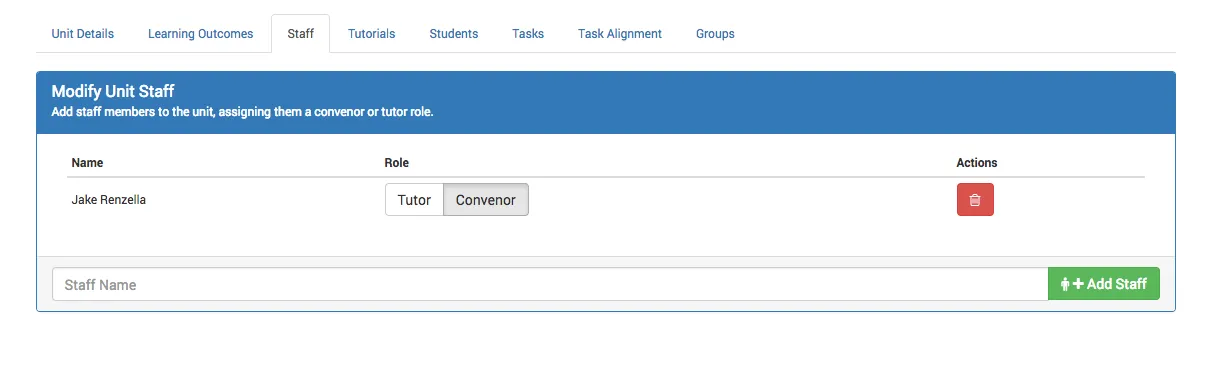
Select the third tab: staff
The staff for a unit include the unit chair, and tutors. These staff can easily be added to the unit by searching for the staff member’s name, and then selecting the Add Staff button.
Note: The search field will autocomplete the staff members name, if the staff member you are trying to assign to a unit is not appearing, ensure the name is spelled correctly, and that the user has previously added to the Doubtfire system. See the enrolling users guide for more details.
Tutorials
Select the fourth tab: Tutorials
Tutorials include the physical and cloud/online tutorials for a unit for which students will attend. Each tutorial will have a tutor from the teaching staff for the unit assigned.
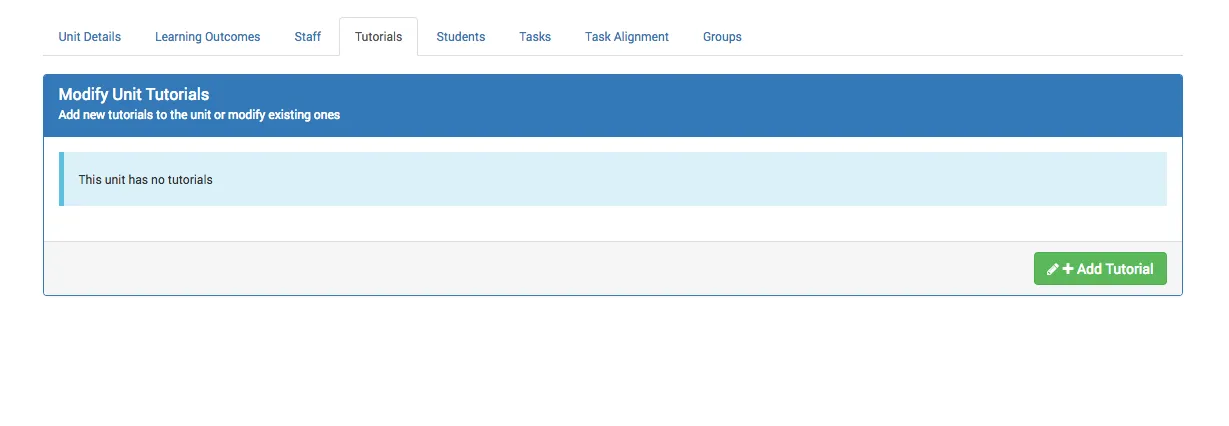
To create a new tutorial, simply select the Add Tutorial button, and fill in the fields in the modal. This includes:
- Abbreviation - A short abbreviation for the unit, example: LA1.
- Location - The room code for the tutorial. If the tutorial does not have a room, you can chose the text, for example “cloud1”
- Day - The day of the tutorial.
- Time - The time of the tutorial.
- Tutor - The staff member who will be taking the tutorial. This is the tutor who will receive the student submissions for the unit.
After completing the modal, simply select Create Unit to create the unit.
Students
”Students” is the list of students who are enrolled into the unit. You can enroll students by batch, or manually. See the “Enroll and Manage Units” guide for more information on how to enroll and manage students.
Tasks
The tasks are the individual learning tasks which your students will complete in a unit. See the “Creating and Managing Tasks” guide for more information.
Task Alignment
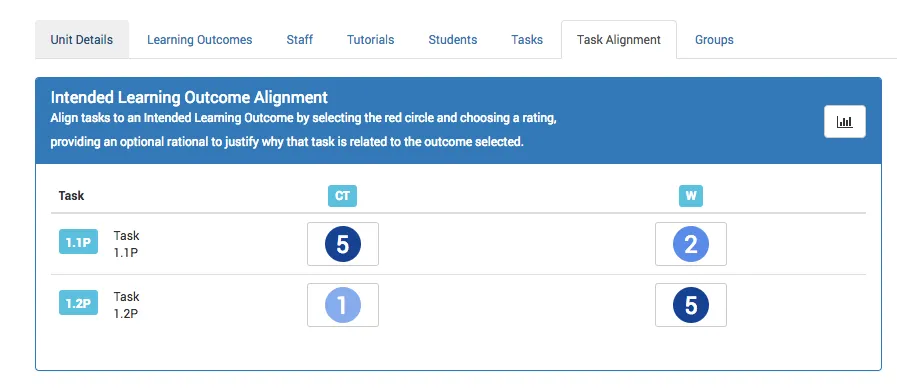
Task Alignment is the relationship between a task, and each of the learning outcomes which were entered in a previous step. You should align each task to demonstrate how strongly it relates to a learning outcome.
For example, in this screenshot, task 1.1P Strongly aligns with the CT learning outcome (Critical Thinking), but only weakly (2/5) aligns with the W (Writing) learning outcome. You can present a rationale for each alignment.
Groups
See the Student Management guide for information on creating and managing student groups in Doubtfire.