Creating and Managing Tasks
Tasks are one of the most important aspects of running a unit in Doubtfire. In this article we will take a look at how we can create and manage tasks.
-
Log in to Doubtfire
-
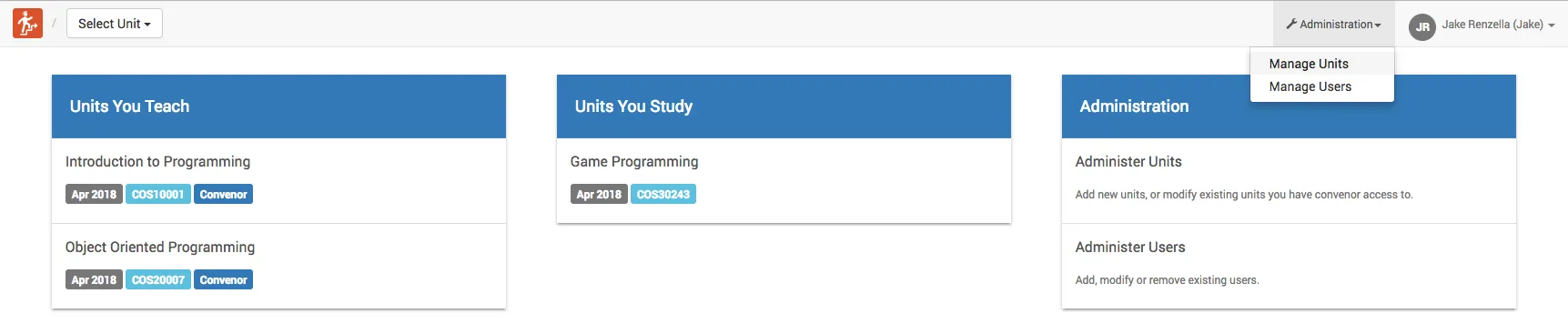
Select Manage Units from the Administration dropdown:
-
Select the unit you wish to administer
-
Select the tasks tab:
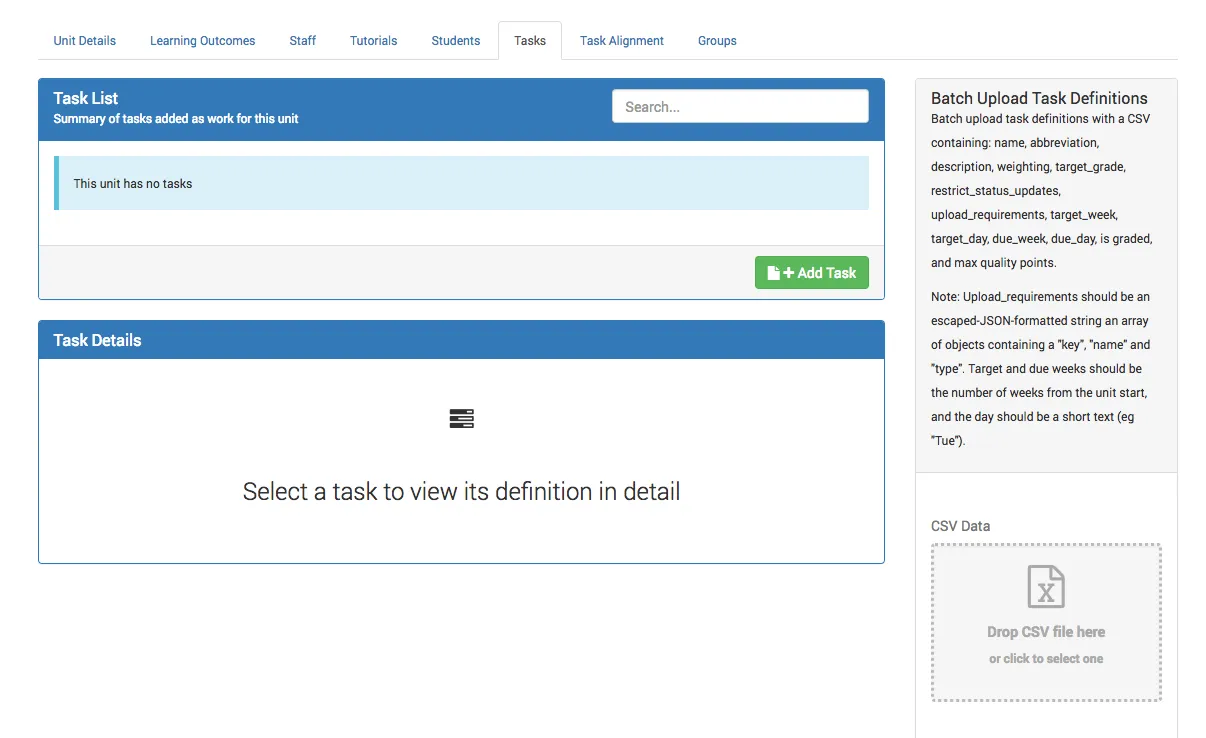
You will now see a list of tasks, or an empty panel if no tasks have been created in the unit.
Creating a task
In Doubtfire, there is no difference in how you create and edit a task. Let’s take a look at how to create a new task.
-
Select the green Add Task button in the Task List panel.
-
Underneath the Task List panel, you will see the Create Task panel, with the following tabs on the left hand side (from top to bottom):
-
Task Description: The general information of the task.

-
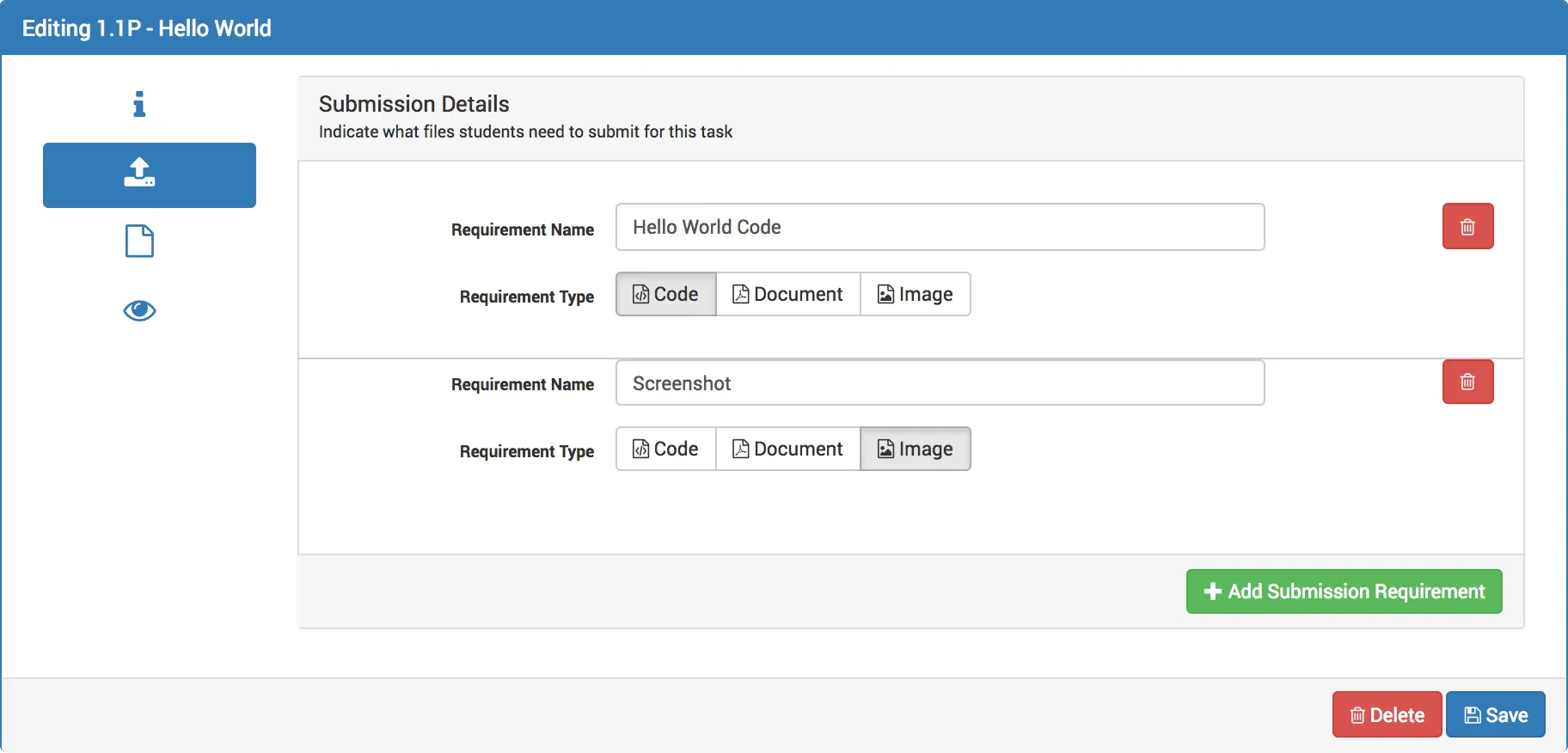
Submission Details: The submission requirements students will need to meet in for the task to become complete.
-
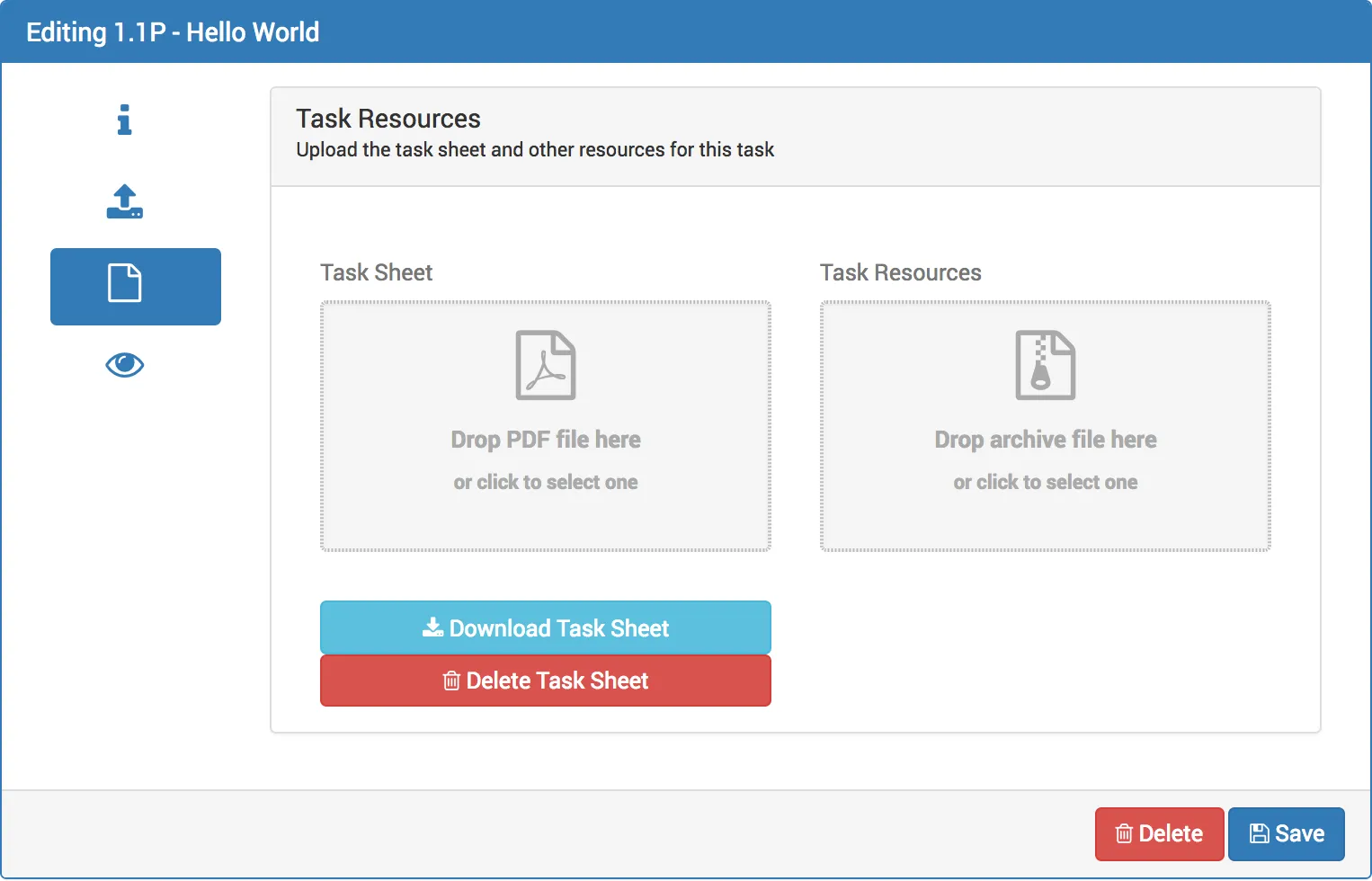
Task Resources: The task sheet or other resources used to help students complete the task.
-
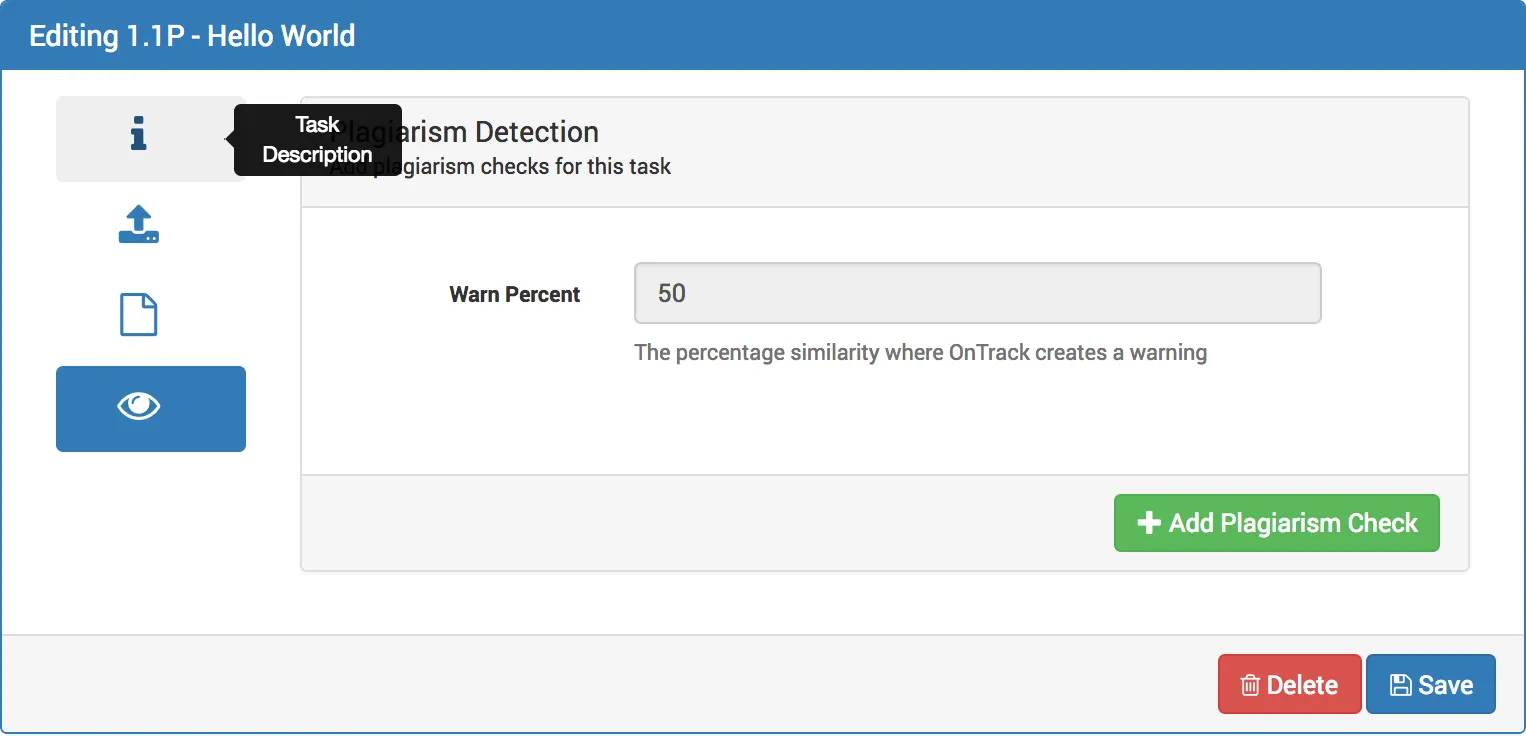
Plagiarism Detection: If enabled, the percentage similarity where Doubtfire creates a warning.
-
Batch upload or export of tasks
In Doubtfire, you can batch import or export task definitions from the same tasks page. To do this, stay on the tasks panel, and on the right hand side you will find:
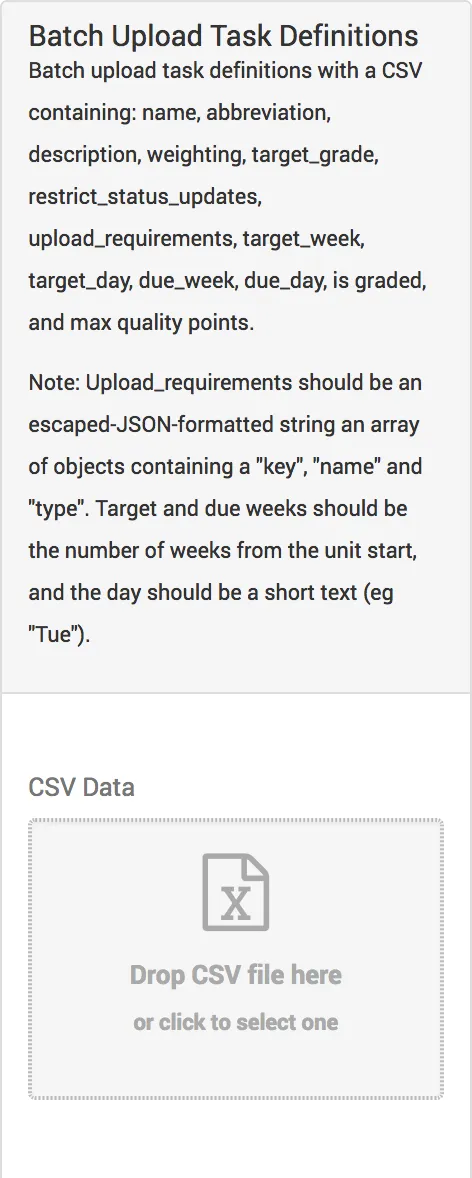
- Batch Upload Task Definitions
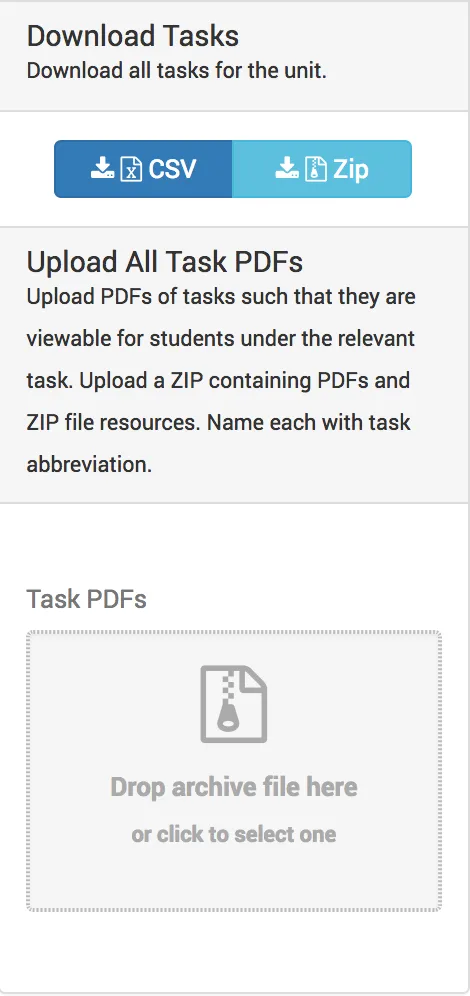
- Download Tasks
- Upload All Tasks